AI Background Removal — Clean Cutouts for Products, Portraits, and Creative Work
Background removal is one of those tasks that sounds simple until you try to do it properly. Roughly trace around a subject and you get jagged, obvious edges. Get precise with the pen tool in Photoshop and you are spending twenty minutes per image — which is fine for one hero shot and catastrophic for a product catalog.
AI background removal changes the math entirely. Upload a photo, and in under two seconds you get a transparent PNG with clean edges, preserved hair detail, and no visible masking. This guide explains why that works, what determines whether the edges look professional or amateurish, and how to use Flixdown's background removal tool to get the result right every time.
Why Background Removal Matters
The use cases are broader than most people initially think.
E-commerce listings. Amazon, Shopify, Etsy, and virtually every other major marketplace requires or strongly prefers product photos on white or transparent backgrounds. A consistent look across all your product images makes a store look professional. The time impact scales quickly — if a clean cutout takes you five minutes manually and you have a hundred products, you have just saved over eight hours.
Professional headshots and profile photos. A photo taken in front of a cluttered wall or dated backdrop becomes a polished LinkedIn or company-site headshot the moment you replace the background with a neutral gradient. The subject looks the same; the impression changes completely.
Design and marketing assets. Whenever a designer needs to place a person or product into a mockup — packaging, advertising layouts, website banners — they need the subject isolated. Every minute spent on masking is a minute not spent on the actual design.
Presentations and documents. A cut-out subject on a slide reads better and looks more intentional than a rectangular photo with a distracting background. Small detail, meaningful difference.
Creative composites. Birthday cards, event invitations, social media graphics, photo gifts — all of them start with a subject isolated from its original context.
In every one of these cases, the quality of the cutout is the whole product. A subject with a fringe of background color, jagged hair edges, or a clipped shoulder reads immediately as "processed." A clean cutout is invisible — which is exactly what you want.
How AI Background Removal Works
The technical name for what happens is semantic segmentation. For each pixel in the image, the AI asks: does this pixel belong to the subject, or to the background?
The output is a mask — a grayscale image where white means "subject," black means "background," and values in between represent soft, semi-transparent edges. When you save the final image as a PNG, that mask becomes the file's alpha channel, which controls transparency. Any software that supports PNG transparency — every browser, every design app, every presentation tool — reads that channel and renders the subject against whatever background it sits on.
According to MIT CSAIL research on image segmentation, transformer-based vision models have dramatically improved handling of fine-detail edges — individual hair strands, fur, lace, and other subjects that previously required extensive manual cleanup regardless of the tool used.
Four components determine whether a cutout looks professional:
Subject detection accuracy. The model has to correctly identify what is foreground. A product on a studio backdrop is straightforward. A person standing in front of a wall that matches their shirt color is harder. Modern models handle most real-world scenes well, but challenging combinations still require a check.
Hair and fur edge handling. This is where most cheap tools fail visibly. Individual hair strands have thousands of semi-transparent edges that no hand-drawn mask can replicate at pixel level. A quality AI model runs a dedicated edge-refinement pass that preserves those strands with genuine partial transparency — not a hard clip, not a blur, but real alpha values that hold up against any background color.
Translucency handling. Eyeglass lenses, lace, thin fabric, glass objects — these are partially transparent by nature. A binary mask (fully included or fully excluded) ruins them. A proper cutout assigns partial alpha values that preserve the translucency.
Shadow retention. A subject cut out without its shadow looks like it is floating. The option to retain a natural ground shadow — at reduced opacity — grounds the subject visually when it is dropped onto a new background.
What Flixdown's Background Removal Focuses On
The market has many background removers. Flixdown focuses specifically on the elements that determine professional quality:
Hair and fur precision. The edge-refinement pass is specifically trained on portrait and animal images. Individual strands come through with real transparency — not smoothed into a blob, not clipped into a silhouette.
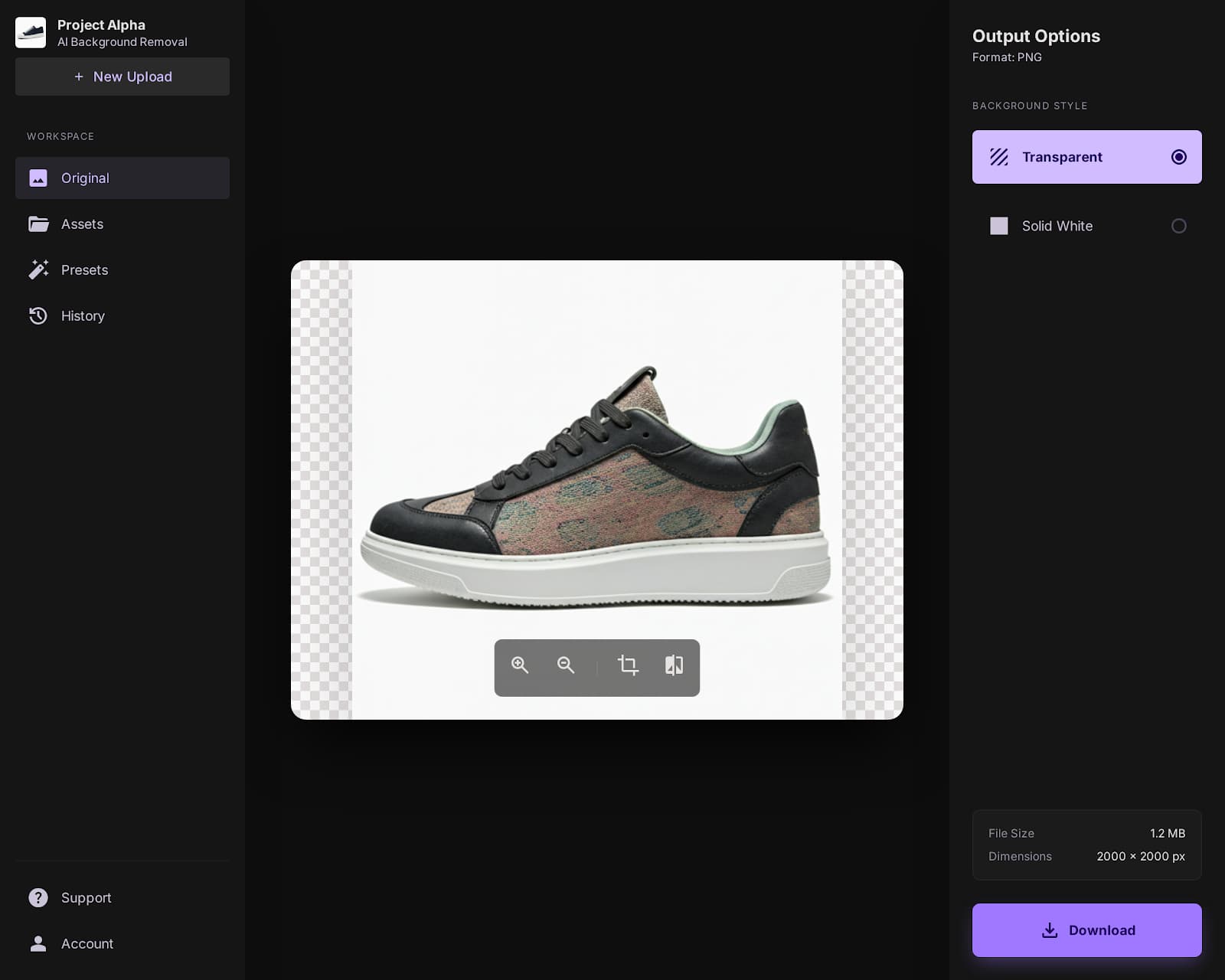
Alpha channel preview before download. Before the file lands on your drive, Flixdown shows you the cutout rendered against a checkerboard transparency pattern. You can see exactly where edges are clean and where they need attention, without any guessing.
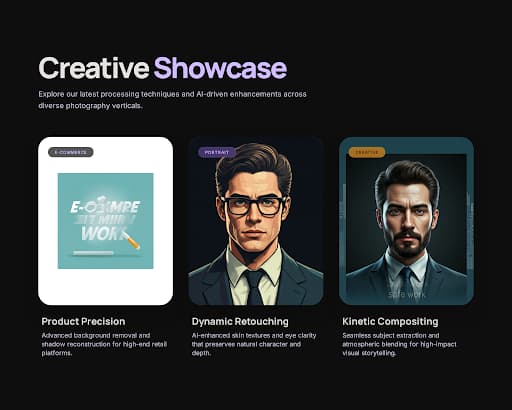
Output presets for common destinations. Three presets cover the majority of use cases: E-commerce (pure white background), Portrait (soft neutral gradient), and Creative Composite (fully transparent PNG). One click sets all the output parameters for your target platform.
Shadow toggle. Keep the subject's natural shadow for a grounded, realistic look, or drop it entirely for a floating silhouette. Your choice, per image, at download time.
Batch consistency. When processing a set of product photos shot under the same lighting, Flixdown produces consistent edge treatment across all images — no variation that requires per-image manual adjustment.
How to Remove a Background with Flixdown
Step 1: Open Flixdown's tools page and select the background removal tool. Drag your image into the upload area or click to browse. JPEG, PNG, HEIC, and WebP all work on input.
Step 2: The AI runs automatically. Most photos are processed in under two seconds. You will see the subject isolated against a checkerboard transparency preview.
Step 3: Check the alpha preview. Look specifically at hair edges, any semi-transparent elements, and the transition zones between subject and background. If something looks clipped or jagged, enable the Refine Edges toggle — it runs a slower but higher-precision edge pass that significantly improves hair and fur results.
Step 4: Choose your output. Select a preset or configure manually: transparent PNG, white background, or a custom color. If you want to keep the subject's natural shadow, toggle it on before downloading.
Step 5: Download. PNG for transparency, JPG for solid backgrounds. The file is ready to use immediately.
For portrait work, try combining background removal with Flixdown's photo colorization tool — colorize a vintage portrait, then extract the subject for a clean composite.
Shooting Tips That Make AI Work Better
The AI handles a wide range of input quality, but cleaner input produces cleaner output.
Even lighting for products. Harsh directional light creates complex shadows at subject edges that the AI has to interpret. A softbox or diffused window light gives cleaner, more predictable edges.
Physical separation from the background. For portraits especially: if the subject's hair color is similar to the wall behind them, the AI has to make a judgment call about which pixels belong to which. Moving the subject a step or two forward — or using a backdrop with contrast — removes that ambiguity.
Avoid extreme lens flare or heavy vignette. These effects create gradual tone shifts at image edges that can confuse subject detection. For product photography, shoot in controlled conditions.
For glass and transparent objects: These are the hardest case for any AI background remover. Flixdown handles them better than most tools, but truly complex glass subjects — filled bottles, glassware with strong reflections — may benefit from a small manual cleanup pass after the AI cut.
Frequently Asked Questions
What file formats are supported for input and output?
Input accepts JPEG, PNG, HEIC (iPhone), and WebP. Output delivers PNG (with full alpha transparency), JPG (for solid-color backgrounds), or WebP. High-resolution DSLR and mirrorless camera files are fully supported — the output matches the input resolution.
Does it work on cluttered or complex backgrounds?
Modern segmentation models are robust to most real-world backgrounds, including scenes with multiple objects, outdoor environments, and busy patterns. The challenging edge case is when the subject and background share similar colors — a matching-color foreground and background requires either better lighting separation in the photo or a post-AI manual touch-up.
Can I get a transparent PNG that includes the subject's shadow?
Yes. Before downloading, toggle "Keep natural shadow." The shadow is rendered at reduced opacity in the alpha channel, so it looks natural when placed on a new background — slightly transparent rather than fully opaque, which is how real shadows behave.
Is there a resolution or file-size limit?
Flixdown supports high-resolution inputs suitable for print use and marketplace listings. Very large files will take longer to process, but the output resolution matches the input — no downscaling.
Will the download have a watermark?
No. All downloads are clean — no watermark, no overlay, no embedded metadata from Flixdown.
Does it work on video?
No. Flixdown's tools process still images. Video background removal — frame-by-frame cutout with temporal consistency — is a different technical problem and is not currently offered.
Is my uploaded photo private?
Uploads are transmitted over HTTPS to an isolated session environment. When your session ends, both the uploaded file and the processed output are permanently deleted from Flixdown's servers. Your images are not used for model training.
Can I process multiple images at once?
Batch processing is available with Flixdown AI Pro. Upload a folder of product photos and process them all with the same settings — useful for e-commerce catalogs where consistency across SKUs matters.
How does Flixdown handle semi-transparent objects like glasses or lace?
The edge-refinement pass assigns true partial alpha values rather than treating each pixel as fully included or excluded. Eyeglass lenses, lace patterns, thin chiffon fabric, and similar objects retain their partial transparency in the output. Results vary by complexity — always check the alpha preview for these cases before downloading.
What is the difference between the three output presets?
E-commerce places the subject on a pure white (#FFFFFF) background, which meets the standard for most marketplace product listings. Portrait applies a soft neutral gradient that flatters the subject and looks professional for headshots and profile photos. Creative Composite outputs a fully transparent PNG with no background — maximum flexibility for placing the cutout into any design environment.
Does it work on product renders and illustrations, not just photos?
Yes, and often very cleanly. CGI product renders and vector-style illustrations typically have sharper, more predictable edges than photos, which makes the segmentation task easier. The same four-step workflow applies.
Can I try it for free before buying?
Yes. New accounts include a set of free trial uses — the count is visible in your dashboard. For unlimited background removals plus batch processing, Flixdown AI Pro starts at $39.99 per month, with annual and lifetime plans also available.