How to Colorize Old Black-and-White Photos with AI — A Complete Guide
There is a shoebox of photographs in most families — prints from the 1940s, the 1950s, the 1960s — and almost all of them are in black and white. Not because color didn't exist yet, but because color film was expensive, inconvenient, and far from universal for most of those decades. The people in those photos were living in full color. The camera just couldn't see it.
AI photo colorization changes that. Upload a grayscale scan, and in seconds you get a version of the image with realistic, natural color — skin tones, clothing, grass, sky, all of it. The process that used to take a professional restoration artist hours now happens automatically. This guide explains how that works, what makes results look convincing, and how to use Flixdown's colorization tool to bring your own photos to life.
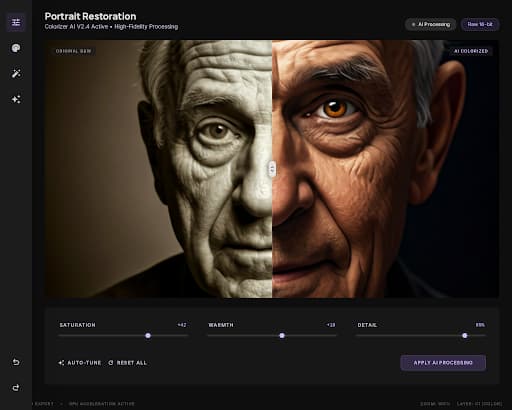
What AI Colorization Actually Does
It is worth understanding the basic mechanics, because it explains both what the technology does well and where it has limits.
A colorization model is trained on an enormous dataset — tens of millions of color photographs that have been converted to grayscale. During training, the model learns to predict what color each part of an image should be, based on context: what the texture looks like, what shape it is, what other objects are nearby, what era the photo appears to be from. By the time training is complete, the model has internalized patterns like "skin at this luminance value and this texture tends to be in this range of warm tones," or "this weave pattern is typical of 1940s men's suit fabric, which was usually dark gray or navy."
When you upload a new photo, the model does not guess randomly. It applies everything it learned to produce a colorization that is statistically consistent with what was actually common in that type of scene. According to research from UC Berkeley on deep colorization, modern neural networks can generate colorizations that human observers rate as realistic in the clear majority of test cases — a result that was essentially impossible with rule-based approaches a decade earlier.
Three factors determine whether the result looks genuine or artificial:
Semantic understanding. The model has to correctly identify what it is looking at. A horse, a rock, a woolen coat, a mid-century automobile — each requires different color treatment. Models that misidentify objects produce color errors that are immediately obvious to the human eye.
Probabilistic color assignment. For any given region, there is a range of plausible colors, not one correct answer. A high-quality model picks from that range in a way that feels natural and internally consistent. Weaker models tend to drift toward oversaturated "painted" results or produce muddy, desaturated output.
Luminance preservation. The original black-and-white image encodes light, shadow, and texture. A good colorization adds color without disturbing that information. The result looks like the photo was shot in color from the beginning — not like a colorized version of something else.
Why Era Matters
One thing that separates Flixdown's approach from basic colorizers is era sensitivity. A photo from 1910 has a very different expected palette from a photo taken in 1965. Pre-war photographs often have muted, slightly warm tones because of the paper chemistry and lighting conditions of that era. The 1950s introduced brighter synthetic fabrics and new automotive paint colors. The 1970s had their own saturated, slightly orange-shifted aesthetic.
Flixdown uses contextual cues — paper tone, grain texture, clothing patterns, hairstyles, vehicle shapes — to infer the approximate era of a photo and bias the colorization toward what was actually common in that period. The result is more than just "looks like color" — it looks like color from the right time.
Getting the Best Results
The AI does most of the work, but a few habits on your end make a real difference.
Scan at high resolution. 300 dpi is a practical minimum for standard print-size photos. For wallet-size or smaller originals, go higher — 600 dpi gives the model more detail to work with and reduces the chance that compression artifacts get misread as texture. If you are working from a negative or slide, a dedicated film scanner will produce cleaner input than photographing the print.
Clean the original before scanning. Dust and scratches on the print surface look like texture to the AI — they can cause local color errors that are hard to fix. A soft brush and canned air take two minutes and avoid most of this.
Check faces first. Human skin tone is the most scrutinized element in any colorized portrait. If the faces look right, the rest of the image almost always follows. If they look off — too orange, too gray, too pink — use the Warmth and Saturation sliders to bring them back to a natural range before evaluating the rest.
Trust the defaults before adjusting. The first-pass colorization is optimized to produce natural results without any tweaking. Give your eye thirty seconds to adjust before reaching for the sliders. Many photos look slightly unfamiliar at first and settle into feeling right after a moment.
Match the era. If you know approximately when a photo was taken, use that context when adjusting. Pre-1950 photos usually benefit from slightly more muted, warm output. 1960s and 1970s photos can handle more saturation and stronger color contrast.
Always keep the original. This should go without saying, but: colorization is additive. The original scan is the archive. The colorized version is a derivative. Save both.
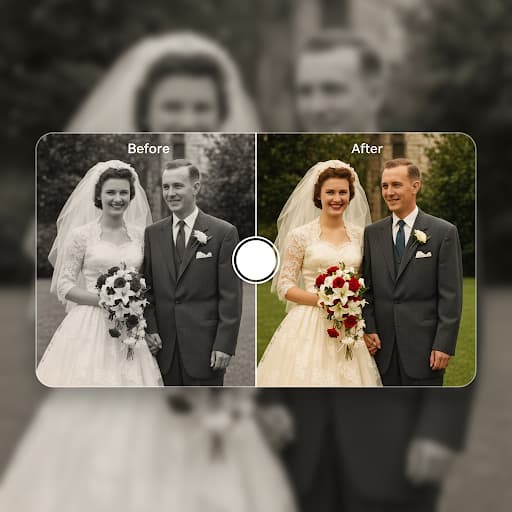
How to Colorize a Photo with Flixdown
The full workflow takes about a minute:
Step 1: Go to Flixdown's photo tools and select the colorization tool. No account required for trial uses.
Step 2: Upload your image by dragging it into the upload area or clicking to browse. JPEG, PNG, TIFF, and HEIC (iPhone) are all accepted.
Step 3: The AI runs automatically. For a typical print-size image, the first-pass colorization completes in a few seconds. You will see the result in the split-screen editor alongside your original.
Step 4: Use the three adjustment sliders if needed:
- Saturation — controls color intensity. Lower for pre-war photos; slightly higher for post-1960s.
- Warmth — shifts the overall tone between cool and warm. Old tungsten-lit interiors usually benefit from a touch more warmth.
- Detail — controls how aggressively the AI sharpens fine texture in the colorized output.
Step 5: Download the result. Flixdown outputs the colorized image at the same resolution as your upload. For batch processing of multiple photos, Flixdown AI Pro handles them in sequence with consistent settings.
What Colorization Is and Is Not Good For
It is worth being honest about the limits.
Colorization produces plausible, realistic-looking color — not verified-historical color. If you need to match a specific documented color (a regiment's uniform, a particular car model's factory paint), the AI output is a starting point, not a final answer. You can use the sliders to shift toward the documented color, then do targeted corrections in any standard image editor.
For standard family archive use — portraits, gatherings, everyday scenes — the AI output is typically indistinguishable from manual colorization work and takes a fraction of the time. The technology has reached the point where most people cannot reliably tell the difference.
Colorization also does not repair damaged photos. A badly faded or torn print should go through a restoration pass first. Flixdown's Photo Enhancement tools can handle contrast rebuilding, dust and scratch removal, and tear repair before the colorization step.
For portrait photos you plan to use in design projects — a family tribute book, a memorial card, a genealogy page — combining colorization with Flixdown's background removal tool gives you a clean, isolated subject that can be placed on any background.
Frequently Asked Questions
Will the colors be historically accurate?
The AI produces statistically plausible colors, not verified-historical ones. For most family photos the result looks genuinely right because everyday items — skin, grass, sky, common fabric colors — have predictable color ranges that are well-represented in training data. For specific items with documented colors, treat the AI output as a starting point and refine with the sliders or a separate image editor.
Is my photo kept private after I upload it?
Uploads are transmitted over HTTPS and processed in an isolated session environment. Files are automatically deleted from Flixdown's servers when your session ends. Your photos are not used for model training or stored beyond the processing session.
Can I colorize a heavily damaged or faded photo?
You can, but results depend on how much original information survives. Severely faded photos often produce washed-out colorization because the AI has less tonal data to work with. Running a contrast-restoration pass first — through Flixdown's Photo Enhancement tools — typically improves the colorization output significantly.
What image formats are supported?
Input: JPEG, PNG, TIFF, and HEIC (iPhone photos are converted automatically). Output: high-resolution JPEG or PNG at the same dimensions as your upload.
Can I colorize multiple photos at once?
Batch colorization is available with Flixdown AI Pro. You can upload a set of photos and process them with consistent settings — useful for working through an entire album at once.
How do the Saturation, Warmth, and Detail sliders work?
These sliders adjust the colorized output without re-running the full AI process. Saturation shifts color intensity globally. Warmth shifts the overall tone on a cool-to-warm axis. Detail adjusts how aggressively the AI renders fine texture in the color layer. They work in real time, so you can experiment freely without waiting for re-renders.
Does colorization work on landscape and architectural photos, not just portraits?
Yes, and often very naturally. Outdoor scenes with sky, vegetation, and natural light are well-represented in training data. Architecture is more variable — older buildings had fewer standardized color norms, so the AI produces plausible results rather than verifiable ones. The sliders help bring the output in line with any reference you have.
What resolution should I scan at for the best results?
300 dpi for standard print-size photos (4×6 or 5×7 inches). 600 dpi for smaller originals. For large format prints (8×10 and up), 300 dpi is usually sufficient. Higher resolution gives the model more pixel information to work with, which tends to improve fine-detail rendering in faces and fabric.
Can I use colorized photos commercially?
The colorized output is your original content processed through Flixdown's tools. Commercial use is permitted under Flixdown's terms of service. If the underlying photograph is still under copyright, the rights situation for the original image is unchanged by colorization.
Does it replace a professional photo restoration artist?
For standard family archive use, the AI result is typically comparable to hand-colorized work and takes seconds instead of hours. For museum-grade archival work where documented historical accuracy matters, a human artist using the AI output as a starting point is still the most reliable approach — the AI drafts, the expert refines.
Is there a free trial?
Yes. New Flixdown accounts include a set of free trial uses, shown in your dashboard. For unlimited colorizations and batch processing, Flixdown AI Pro starts at $39.99 per month, with annual and lifetime plans available.
What happens to my file after processing completes?
Both the uploaded original and the processed output are stored temporarily in your session environment. When your session ends, both are permanently deleted from Flixdown's servers — nothing is retained beyond your active session.